How to Fix NetMirror APK Black Screen Problem — 7 Proven Solutions (2026)
The black screen problem is one of the most reported issues by NetMirror APK users. You open the app, select a movie or show, and instead of video — nothing. Just a black screen, sometimes with audio playing in the background, sometimes completely silent.
This guide covers every known cause and 7 proven solutions that fix Netmirror black screen problem on Android, Firestick, Smart TV, and PC.
Why Does NetMirror Show a Black Screen?
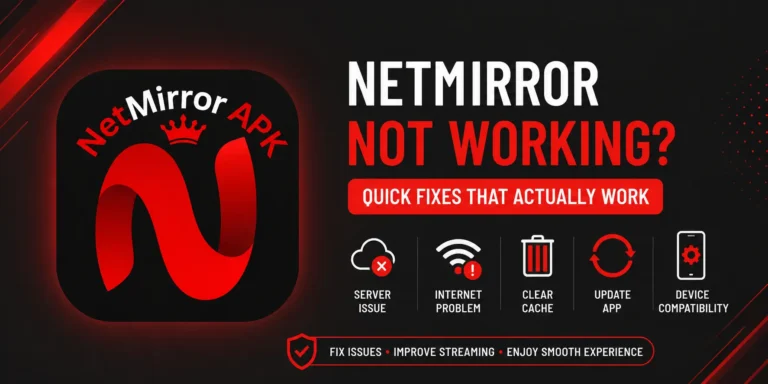
Before jumping to fixes, it helps to understand what causes it. The black screen issue in NetMirror usually happens because of one of these reasons:
- The app version is outdated and incompatible with current servers
- Corrupted cache files are blocking the video renderer
- The selected streaming server is down or overloaded
- Hardware acceleration conflict with your device’s GPU
- The screen is on but the video player failed to initialize
- A VPN or firewall is blocking the stream
- Insufficient RAM causing the video buffer to fail silently
Knowing the cause helps you apply the right fix first.
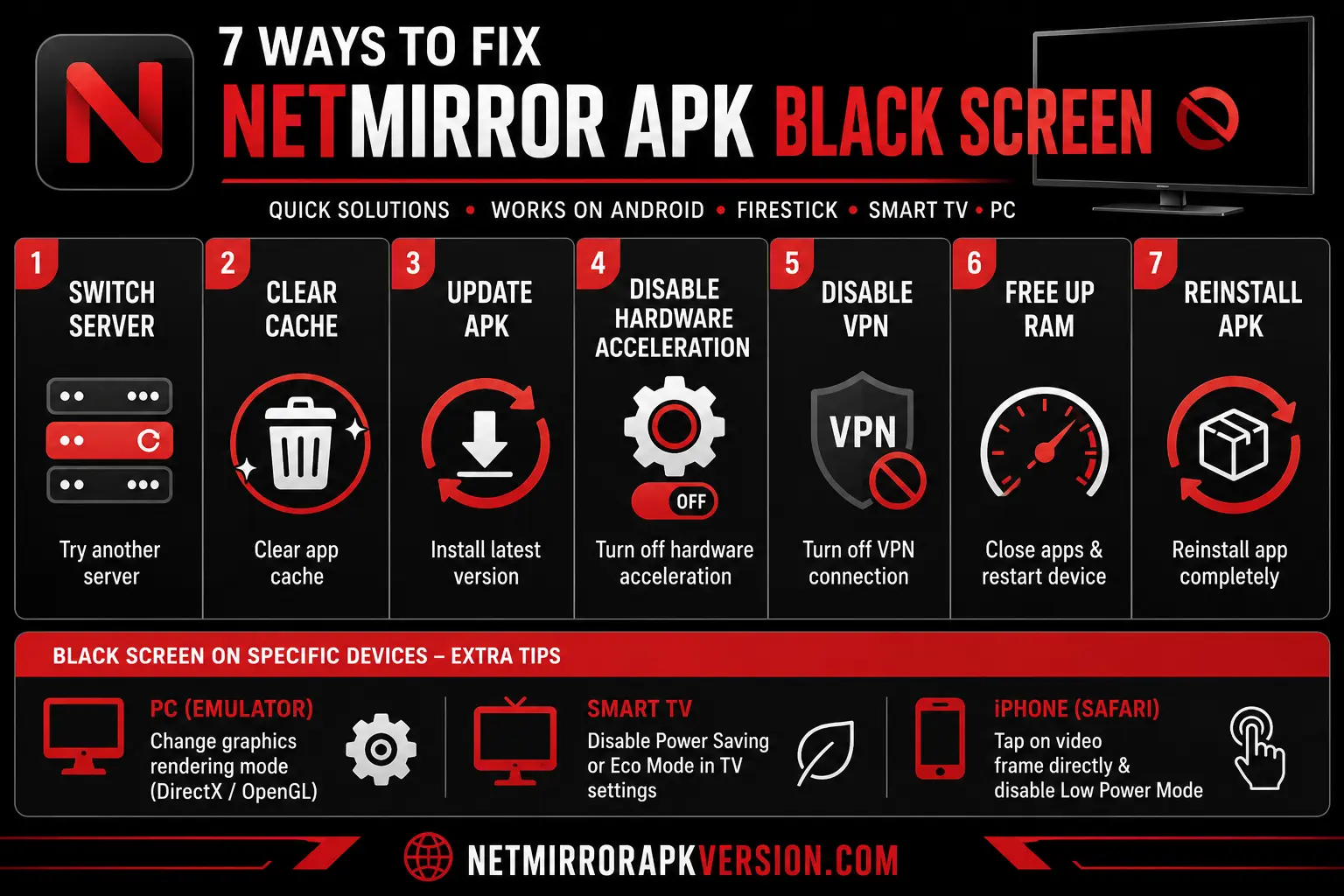
Fix 1: Switch to a Different Streaming Server
This is the fastest fix and solves the black screen in most cases. NetMirror provides multiple servers for each piece of content. If the current server is down or overloaded, it sends no video signal — resulting in a black screen.
How to do it:
- When the black screen appears, do not close the app
- Look for a server selection option inside the video player
- Tap on it and choose a different server number (Server 2, Server 3, etc.)
- Wait 5–10 seconds for the new server to load
In most cases, switching servers immediately resolves the black screen.
Fix 2: Clear the App Cache
Corrupted cache files are the second most common cause. Over time, NetMirror stores temporary data that can become damaged and interfere with video loading.
Steps for Android:
- 1. Go to Settings on your device
- Tap Apps or Application Manager
- Find and tap NetMirror
- Tap Storage
- Tap Clear Cache
- Reopen NetMirror and try playing again
Do not tap Clear Data unless necessary — that will reset all your in-app settings and preferences.
Steps for Firestick:
- Go to Settings → Applications → Manage Installed Applications
- Find NetMirror
- Select Clear Cache
- Restart the Firestick and reopen the app
Fix 3: Update to the Latest APK Version
Outdated versions of NetMirror often lose server compatibility as the backend gets updated. This causes the video player to open but receive no stream — appearing as a black screen.
How to update:
- Visit the Download NetMirror APK page at netmirrorapkversion.com
- Download the latest version (currently v6.0)
- On Android, you do not need to uninstall first — install over the existing version to preserve settings
- On Firestick, download using the Downloader app and install over the existing version
After updating, restart your device before opening the app.
Fix 4: Disable Hardware Acceleration (Android)
Some Android devices have GPU compatibility issues with certain video players. When hardware acceleration conflicts with NetMirror’s player, it can cause a black video frame while audio continues normally.
How to fix:
- Open NetMirror
- Go to the app Settings (usually a gear icon)
- Look for Player Settings or Video Settings
- Find Hardware Acceleration and toggle it OFF
- Go back and try playing content again
If your device does not have this option inside the app, try using a different built-in player option if NetMirror offers player selection.
Fix 5: Check and Disable VPN
Some VPN services reroute traffic in a way that confuses NetMirror’s streaming servers. The server receives the connection but sends video to the wrong endpoint — resulting in a black screen on your device.
Steps:
- Close NetMirror completely
- Turn off your VPN from the notification bar or VPN app
- Reopen NetMirror and try the same content
- If it works, your VPN was the cause
If you need a VPN, try switching to a different server location or use a split-tunnel VPN that excludes NetMirror from the tunnel.
Fix 6: Free Up Device RAM
When your device is running low on RAM, the video buffer cannot load properly. The app opens, the player initializes, but the video frame stays black because there is not enough memory to process the stream.
How to free RAM quickly:
- Close all background apps — press the Recents button and swipe them all away
- On Firestick: Settings → My Fire TV → Restart (a full restart clears RAM more effectively than closing apps)
- On Android TV: unplug the TV for 30 seconds and plug back in
- After clearing RAM, open only NetMirror and try again
For ongoing issues, check how much storage is free on your device. NetMirror performs best with at least 1 GB of free RAM and 1 GB of free storage.
Fix 7: Reinstall NetMirror APK Completely
If none of the above fixes work, a clean reinstall is the most reliable last resort. This removes any corrupted installation files and gives the app a fresh start.
Steps:
- Go to Settings → Apps → NetMirror → Uninstall
- Restart your device
- Visit netmirrorapkversion.com and download the latest APK fresh
- Install it and open the app
- Try playing content — the black screen should be gone
A clean reinstall fixes issues that clearing cache cannot, because it removes the actual app files rather than just temporary data.
Fix Netmirror Black Screen on Specific Devices — Extra Tips
NetMirror Black Screen on PC (via BlueStacks or LDPlayer)
If you are running NetMirror through an emulator on Windows and getting a black screen, the issue is usually the emulator’s graphics rendering mode. In BlueStacks, go to Settings → Display → and switch between DirectX and OpenGL rendering modes. Try both and restart after each change.
NetMirror Black Screen on Smart TV
Smart TVs sometimes have strict background process limits. Go to your TV settings and disable any Power Saving or Eco Mode features — these can throttle apps and cause video rendering failures.
NetMirror Black Screen on iPhone (Safari Web App)
If you are using the Safari web app version on iPhone and getting a black video, the issue is usually Safari’s autoplay policy. Tap directly on the video frame rather than the play button overlay, and make sure your iPhone is not in Low Power Mode.
Prevention Tips to Fix Netmirror
Once you fix the black screen, these habits will keep it from coming back:
- Update NetMirror APK whenever a new version is released
- Clear cache once every 2–3 weeks before issues appear
- Always download updates from netmirrorapkversion.com only
- Keep at least 1 GB of free storage on your device at all times
- Restart your streaming device (phone, TV, Firestick) once a week
Conclusion
The NetMirror APK black screen problem is almost always fixable within a few minutes. Start with Fix 1 (switch server) and Fix 2 (clear cache) — these two resolve the issue in the majority of cases. If those do not work, update the APK, disable hardware acceleration, or do a clean reinstall.
For the latest version of NetMirror APK, visit the Download page on this website. If you are setting up NetMirror on a new device, check the dedicated guides for Windows PC, iPhone iOS, and Smart TV.
FAQs – Frequently Asked Questions
Why does NetMirror show a black screen but audio still plays?
This is a hardware acceleration conflict. The audio stream loads successfully but the video renderer fails. Go to NetMirror player settings and disable hardware acceleration to fix this.
Does the black screen happen on all content or just some?
If it happens on specific titles only, those titles have a server issue. Switch servers inside the player. If it happens on all content, it is a device or app issue — clear cache or reinstall.
How long does it take to fix the black screen?
Most users fix it in under 5 minutes by switching servers or clearing cache. A full reinstall takes 5–10 minutes.
Will clearing cache delete my saved content or watchlist?
No. Clearing cache only removes temporary files. Your preferences, watchlist, and downloaded content are stored separately and are not affected by clearing cache.
Does this happen more on Firestick than Android?
Firestick users report the black screen more frequently because of its stricter RAM management and background process limits. Fix 6 (freeing RAM) and Fix 7 (clean reinstall) are particularly effective on Firestick.
Is the black screen a sign that NetMirror is down?
Not necessarily. Server-side issues affect specific content titles, not the entire app. If the home screen loads fine but videos show a black screen, it is a server or device issue — not a full outage.